
How to setup IPTV on Fire TV Stick
1: From the home screen of your device, hover over the Find option.
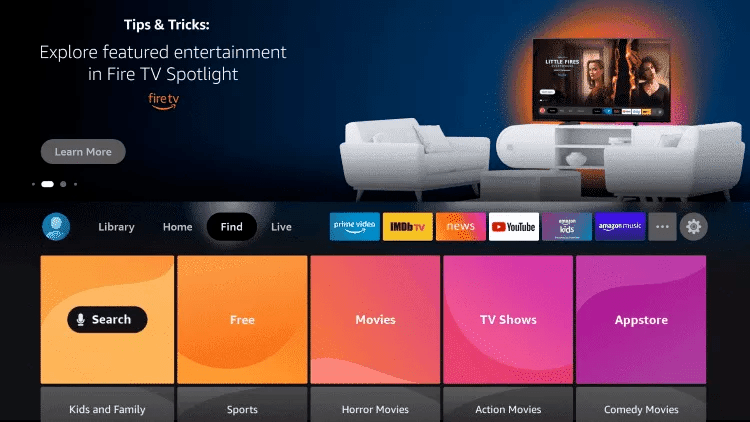
2. Click Search.
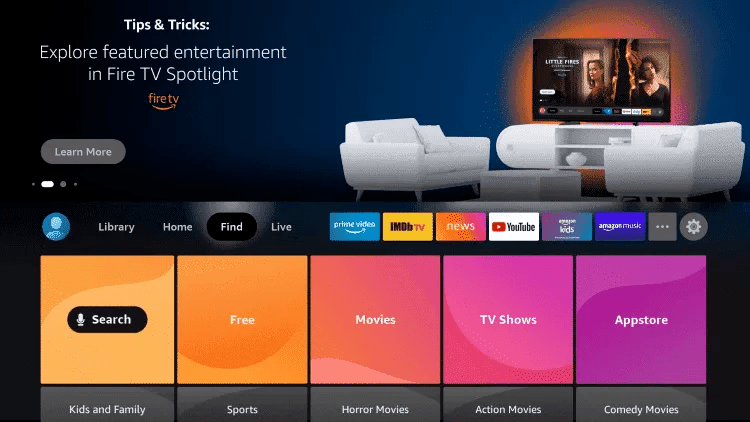
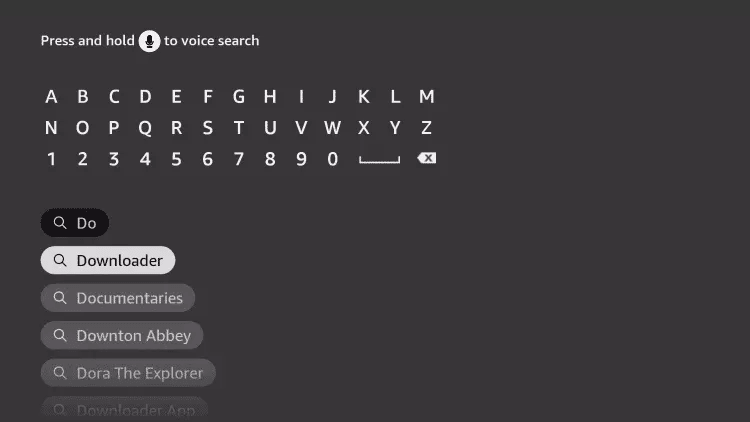
3. Search for and select Downloader.
4. Choose the Downloader app.
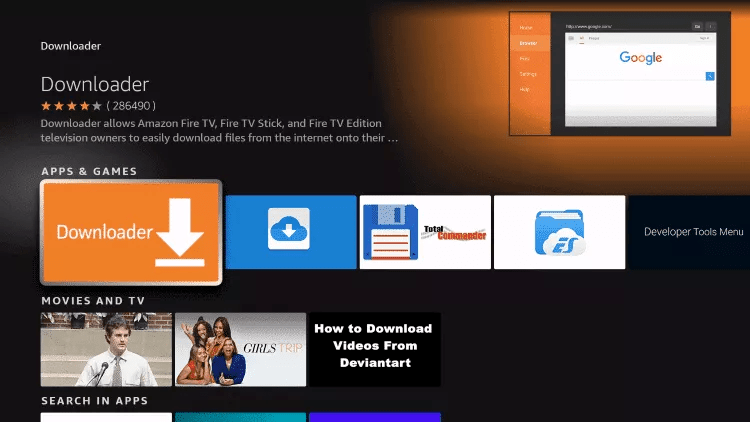
5. Click Download.
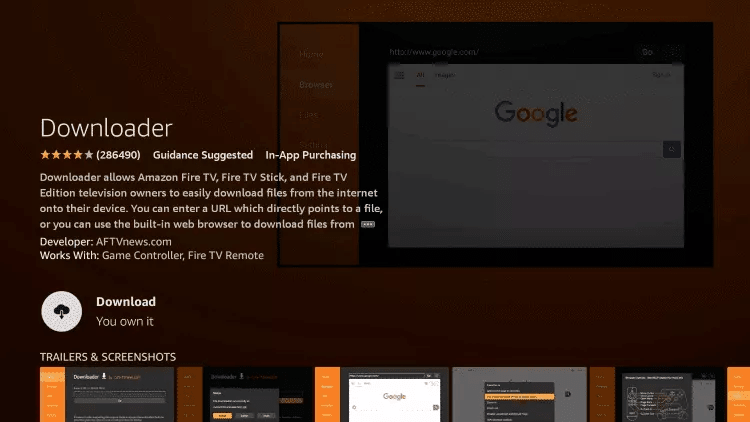
6. Once the app finishes installing click Open.
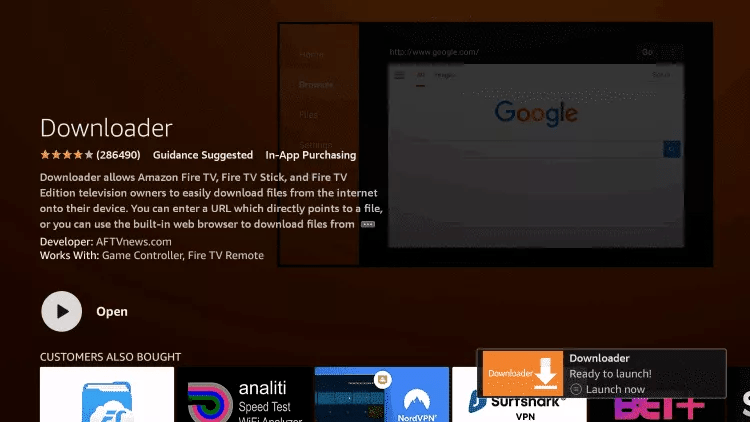
7. Return to the home screen and open Settings.
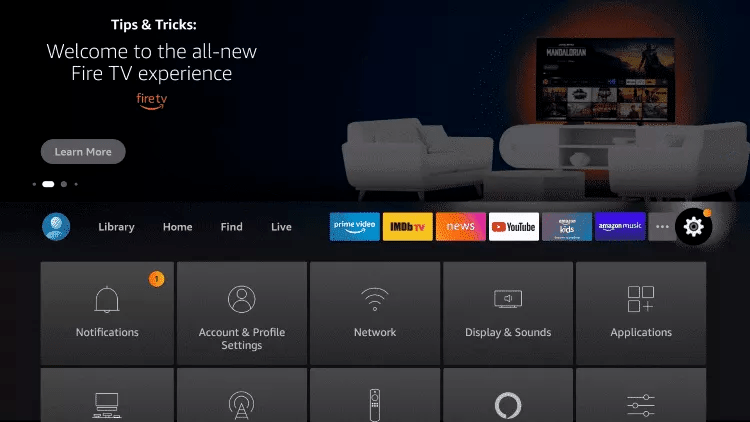
8. Click My Fire TV.

9. Choose Developer options.
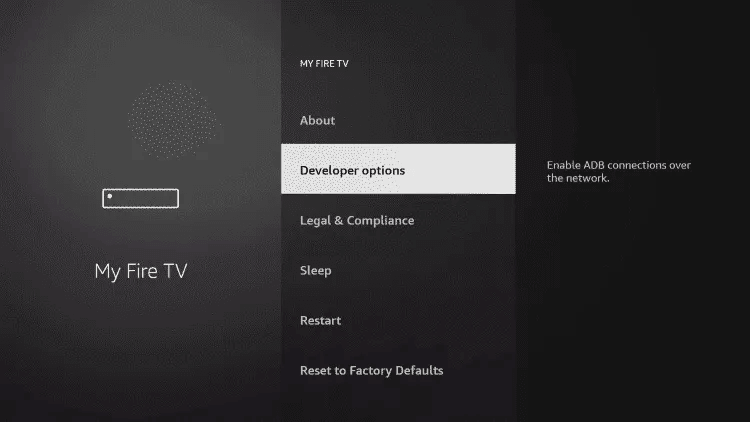
10. Click Install unknown apps.

11. Find the Downloader app and click it.

12. This will turn Unknown Sources to On for the Downloader app. This will enable side-loading on your device.
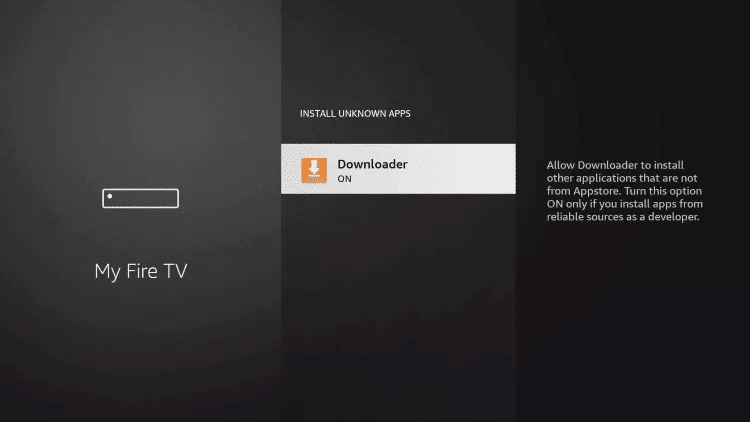
13. Launch Downloader.
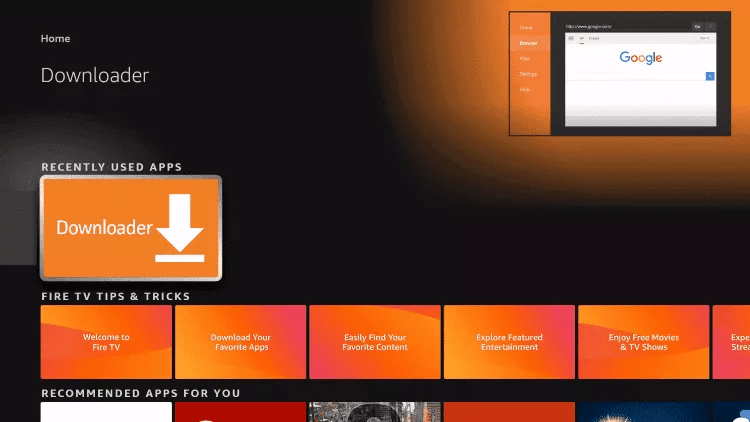
14. Click Allow.

15. Click OK.

16. Type the following URL exactly as shown here: https://www.iptvsmarters.com/smarters.apk
and click Go.

17. Wait for file to download.

18. Click Install.
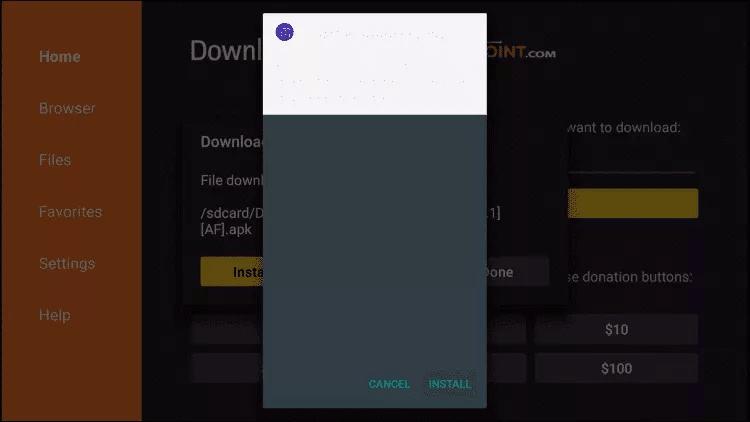
19. Click Done.
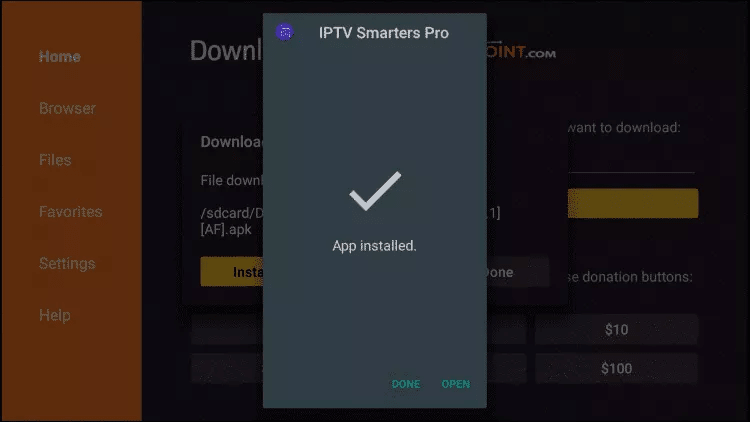
20. Open IPTV smarters then select Login with Xtream codes api.
21. Enter the login details that we sent you via Whatsapp or Email or Chat
FOR TIVIMATE
1. Type the following URL exactly as shown here: https://tivimates.com/tiviapk
and click Go.

2. Wait for file to download.
Wait for the file download to finish
3. Click Install and once the installation is completed. You can open the app.
4. Click “Add Playlist” then choose “Xtream codes“
5. Enter the login details that we sent you via Whatsapp or Email or Chat
How to setup IPTV on Android with IPTV Smarters Player
Step 1: Start by downloading IPTV Smarters app through this URL : https://www.iptvsmarters.com/smarters.apk
Step 2: Open the app once downloaded and Enter the login details.

Step 3: Enter the login details that we have provided you after you get a subscription with us
Now Click on “ADD USER” to proceed to the next section.
Step 4: Wait some seconds.
Step 5: Now click on “Live TV” icon as depicted in the image via a red arrow.
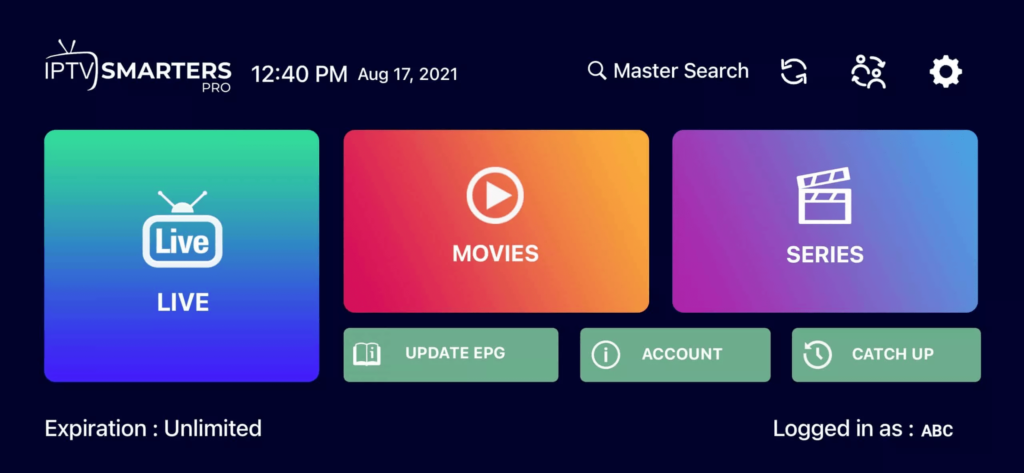
Step 6: Now you must select the channel group that you want to watch and proceed to the next section.
Step 7: Now you must click on the channel name and then double click on the small screen to turn into full screen as the final step.
Done
How To Setup IPTV On Apple/IOS With IPTV Smarters Player
Step 1: Start by downloading IPTV Smarters app from the Apple Store through this URL :
https://apps.apple.com/in/app/smarters-player-lite/id1628995509
or you can search for it on App store
install the app on your IOS device.
Step 2: Open the app once downloaded and Enter the login details.
Step 3: Enter the login details that we have provided you after you get a subscription with us
Now Click on “ADD USER” to proceed to the next section.
Step 4: Wait some seconds.
Step 5: Now click on “Live TV” icon as depicted in the image via a red arrow.
Step 6: Now you must select the channel group that you want to watch and proceed to the next section.
Step 7: Now you must click on the channel name and then double click on the small screen to turn into full screen as the final step.
Step 8: To add EPG no need to add any EPG url, Just click on “Install EPG” .
Done
Step 1: You can download SetIPTV / NetIPTV / Smart IPTV from your TV store on Samsung, LG …
Step 2: After the installation, open the app the you will find MAC Address on screen
EX :

Step 3: Send us the MAC address via Whatsapp/Email/Live Chat
Step 4: After few minutes, restart/reboot your TV and Open the app
Done
Windows Method :
Download IPTV Smarters app through this URL : https://www.iptvsmarters.com/download?download=windows
MAC Method :
Download IPTV Smarters app through this URL : https://www.iptvsmarters.com/download?download=mac
Step 1: Send us the MAC Address of your MAG via Whatsapp/Email/Live Chat
Step 2: After making the payment, we will send you the portal link
IBO Player is a complete media player for smart tv and Android tablets that lets you open most existing video and sound formats. Playing media files on smart TVs is common. The quality of video they are able to provide for these devices, such as tablets, has greatly improved and has become a popular choice for watching movies and videos, especially when available without a player.
Please note: IBO Player does not provide any lists or channels, so you must provide your list link (m3u link) to watch channels and VOD.
Function :
IBO Player is one of the best streaming media players and provides you with an easy way to watch channels from your IPTV service provider, here is a list of IBO Player’s most important features:
- VLC-based player for fast streaming media.
- Different themes to customize your application.
- Easy to access and simple intuitive interface. Support messages and posters in movies and series.
- Support language choice in movies and TV series.
- Support film and TV subtitle language choice.
- Two configuration methods for the m3u link and XStream code are supported.
- Support for the possibility of multiple playlists to protect their pin codes.
Compatible Devices :
Can be installed on all of your devices: for example Smart TV, Android(TV, Box, Fire Stick,…), Or Apple TV. The IBO Player application supports the following devices:
| Android TV | Fire TV | Firesticks |
| Apple TV | LG Smart TV | Samsung Smart TV |
The IBO player is just a media player. The app is available in the store: a free 7-day trial. At the end of the free trial, you have to pay a one-time fee of €8 per TV/device to activate it.
Ibo Player For android
Since IBO Player has uploaded many TV apps to the Google Play Store. You can search and download directly from the App Store.
how to download it :
- Open your Android device and head to the internal App Store or Google Play Store to search for IBO Player.
- Find the corresponding IBO Player application and click Install.
- Once installed, the IBO Player app will appear on your screen.
IBO Player forr firestick
Since IBO Player can’t be found on FireTV or Firestick’s Amazon App Store, you must side-load the IBO Player app, which means you must use the APK version of the app to complete the IBO Player download. This requires more steps and another application download (Downloader) to install the APK file.
How To Dowloa
- First, turn on your Firestick device and click Settings to turn on allowing unknown sources.
- Then go to the search bar, search for Downloader, and install the Downloader program.
- Once installed, open the Downloader program and enter the APK URL: http://ibodesk.com/y.apk.
- Start the download/installation process. Once installed, IBO Player will appear on your device.
IBO Player for IOS
As IBO Player has uploaded many TV apps to the Apple Store. You can search for IBO directly by heading to the Apple Play store on your device. You can download it directly without any tools.
IBO Player for PC
How to install IBO Player on Windows 7/8/10 PCS and laptops. You’ll find a detailed step-by-step guide below.
How to Download and Install
- If you have not installed the Bluestacks 5 software before, please download it from the following link – Download Bluestacks for PC.
- After the installation is successful, open the Bluestacks emulator.
- It may take some time to load the Bluestacks application initially. Once opened, you should be able to see the Bluestacks home screen.
- The Google Play store is pre-installed in Bluestacks. On the home screen, locate Playstore and double-click the icon to open it.
- Now search for the application you want to install on your PC. In our example, search for IBO Player to install on a PC.
- After you click the Install button, IBO Player is automatically installed on Bluestacks. You can find the application under the list of installed applications in Bluestacks.
IBO Player for Smart TV (Samsung /LG)
The IBO Player program has uploaded many TV apps to the Samsung TV Store or Lg Content Store. You can go directly to the Samsung or LG Smart TV App Store screen and search for the “IBO Player” app. If the app is not displayed on the home screen, you may need to search for it under “All Apps” or “Updates.”
How to activate and set an IPTV subscription on IBO Player?
- Once the application is installed, boot there with its mac address and key.
- Click on this link to enter the application website: https://iboplayer.com/device/login.
- Enter the information displayed on the TV in the required fields (mac and Key) to connect to the application.

- Once connected, you have two configuration methods, either with the m3u link (+ Add playlist) or with Xtream detail code (+ add XC playlist).

- Here is how to embed your m3u link if you click + Add playlist.

- Here’s how to use Xtream in detail:

- As a final step, it only remains to go back to your TV and restart the app so that it loads and displays the list with the given name on its website.
FAQs
Is the IBO player free?
IBO Player will allow its new subscribers a free seven-day trial. If you like the application, you can visit the website and purchase it. Video support: All video formats are supported.
Does IBO Player include any channels?
Neither the IBO Player APP nor any administrator can help you find a good playlist. In addition, it does not provide playlists of any kind. Not responsible for content uploaded to our APP.
Does the IBO Player APP have an EPG system?
No, the app does not integrate with the EPG system, but if your vendor has an EPG-Ready system, then it will work with the IBO Player’s platform.
Conclusion
Now that you have some idea about IBO Player, if you are interested in the above-mentioned players and IPTV services then go ahead and subscribe.
This guide shows how to install Room IPTV APK on Firestick/Fire TV, Android, and more.
Room IPTV is a popular IPTV Player used for streaming live channels. Many users pair this app with live TV services and free M3U playlists to improve their streaming experience.
With this live TV app on your device, you can use your favorite IPTV service with ease!
Room IPTV is a live TV player that requires an M3U URL of your current IPTV provider in order to create a playlist.
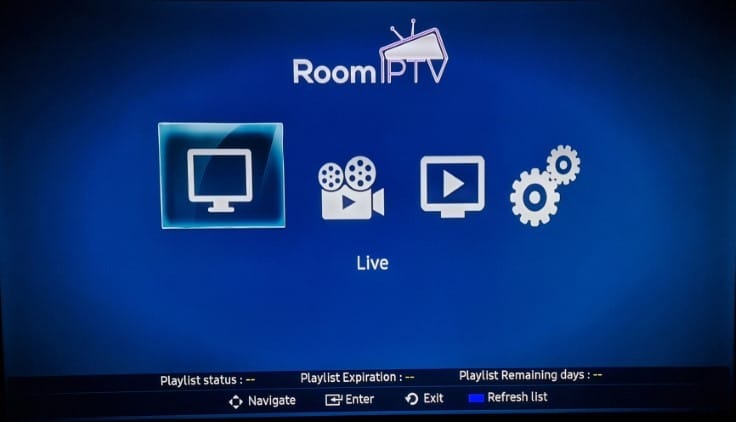
Since most IPTV services provide login information via M3U URL, this live TV player is a great option for playback.
Once you learn how to use the Room IPTV user interface, you will notice that it may be quicker to navigate than other programs.
IMPORTANT: We strongly recommend using a VPN with these IPTV players if pairing with unverified providers. Check out the link below for more information.
Since this live TV player isn’t available in the Amazon App Store, it must be side-loaded onto your Fire TV device using the Downloader app.
However, for those using Android TV devices, you can find this application in the Google Play Store.
The steps below show you how to install this live TV player using an Amazon Firestick Max. This same process works on all models of the Amazon Firestick, Fire TVs, and Fire TV Cube.
The Amazon Firestick is the most popular device for live TV due to its low price and jailbreaking abilities.
LEGAL DISCLAIMER: IPTV WIRE does not own or operate any IPTV service or streaming application. We do not host or distribute any applications. We do not verify whether IPTV services or app developers carry the proper licensing. The end-user shall be solely responsible for media accessed through any device, app, addon, or service mentioned on our Website.
For 100% legal IPTV service, IPTV WIRE recommends Vidgo.
Table of Contents
How to Install Room IPTV on Firestick/Fire TV
1. Install the Downloader app from your App Store (Amazon or Google Play) and turn on Apps from Unknown Sources in the settings of your device.
If you haven’t done this yet please refer to the tutorial below that walks through this simple process.
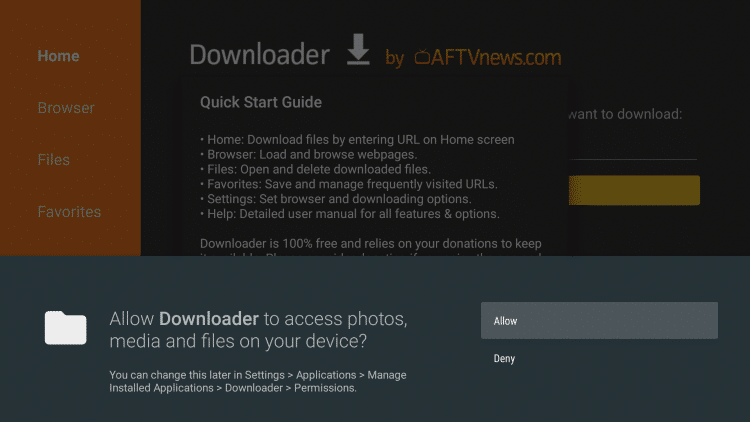
2. Launch Downloader
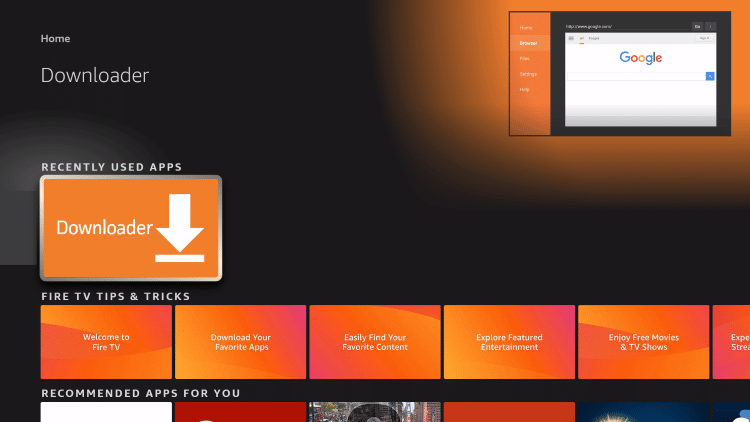
3. Click Allow
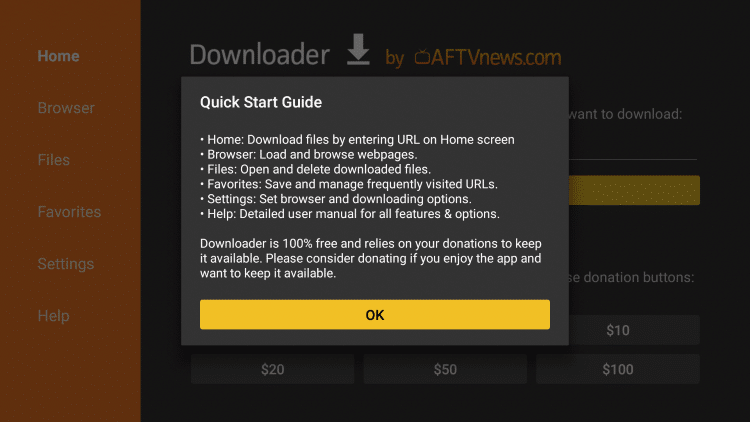
4. Click OK
Your online activity is tracked by your Internet Service Provider, app/addon devs, and government through your identifying IP address.
Stream anonymously by using Surfshark VPN.
Surfshark will encrypt your connection to the Internet and mask your IP address and location so you will become anonymous.
Your Current Identifying IP Address: 105.67.133.213
SAVE 82% + GET 2 FREE MONTHS
Surfshark backs their service with a 30-day money back guarantee.
Surfshark allows you to use your account on unlimited Internet-connected devices
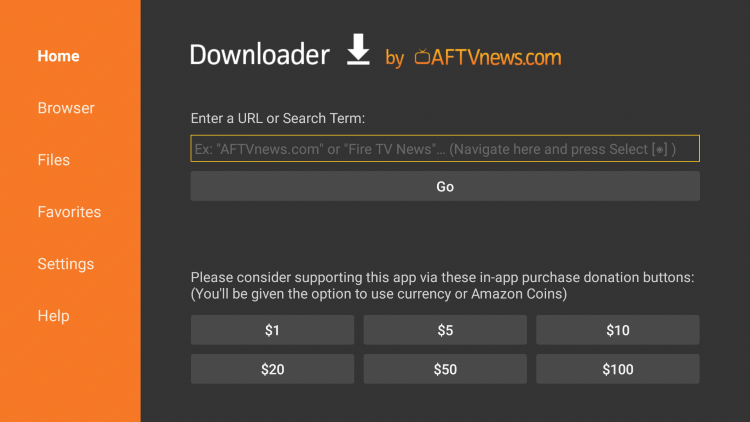
5. Click the URL box
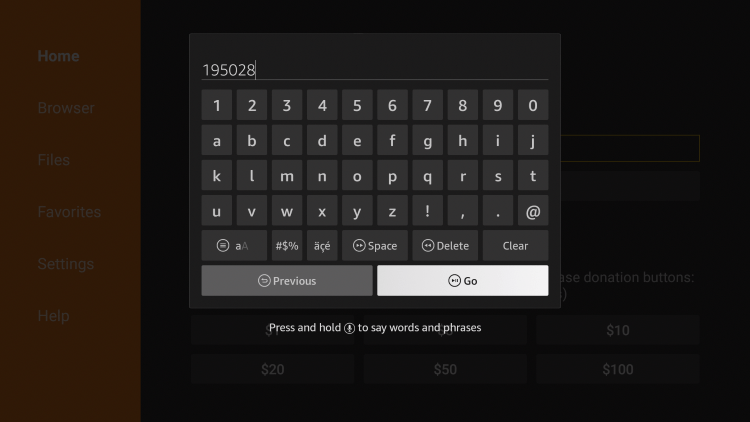
6. Enter the following Downloader code and click Go – 195028
- This is pointing to an official source for the Room IPTV APK
7. Click Download APK.
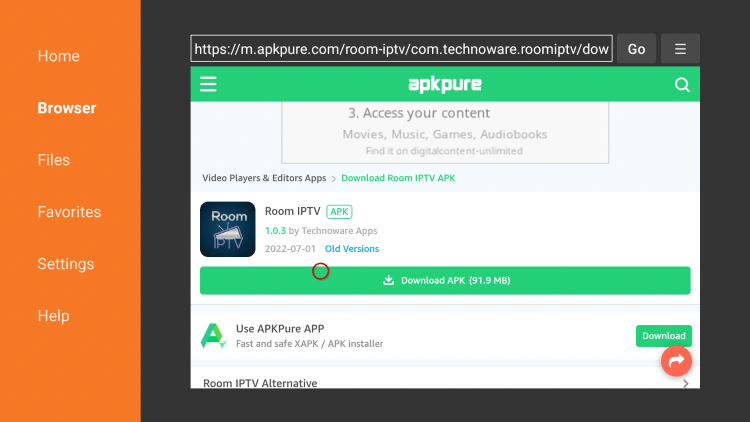
8. Wait for the app to install.
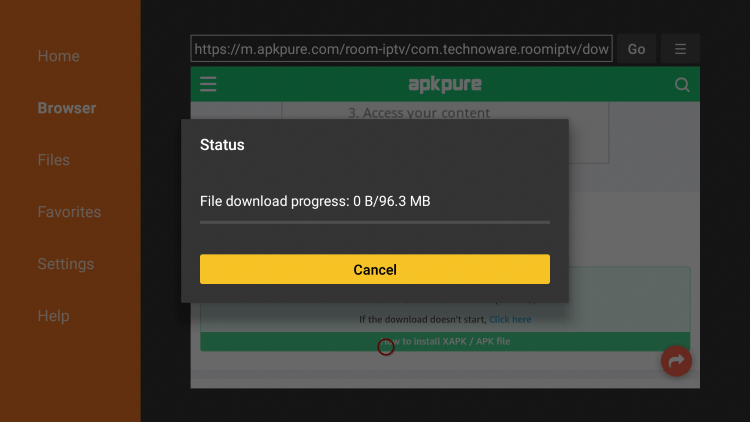
9. Click Install.
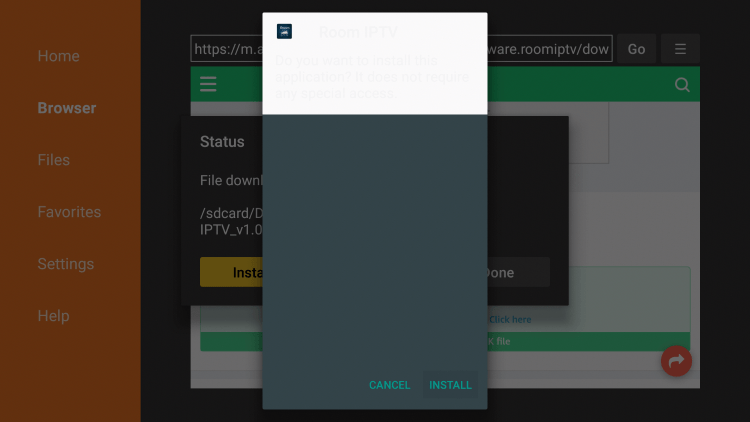
10. Click Open or Done.
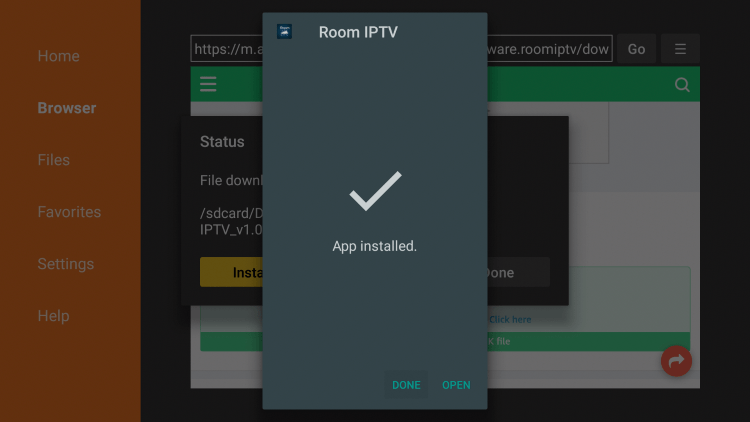
11. Launch the APK and wait a few seconds for the app to launch.
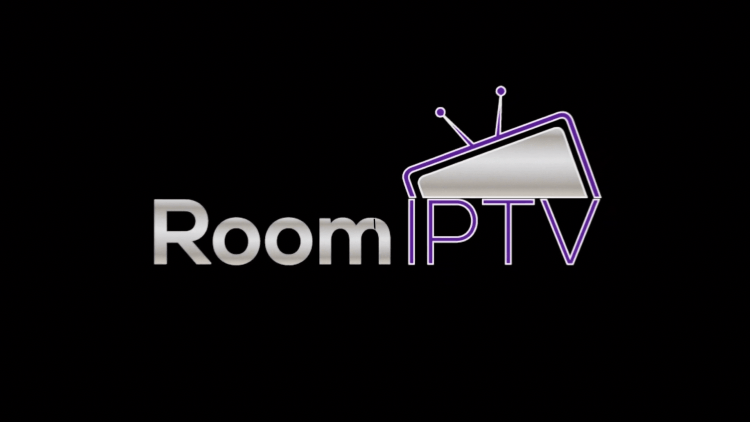
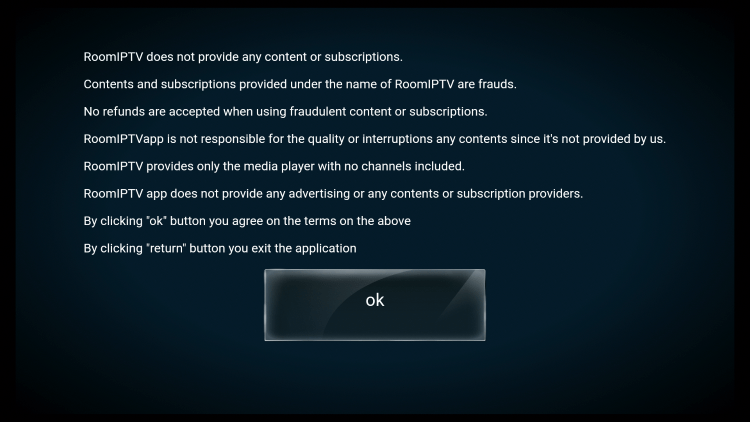
12. Click OK.
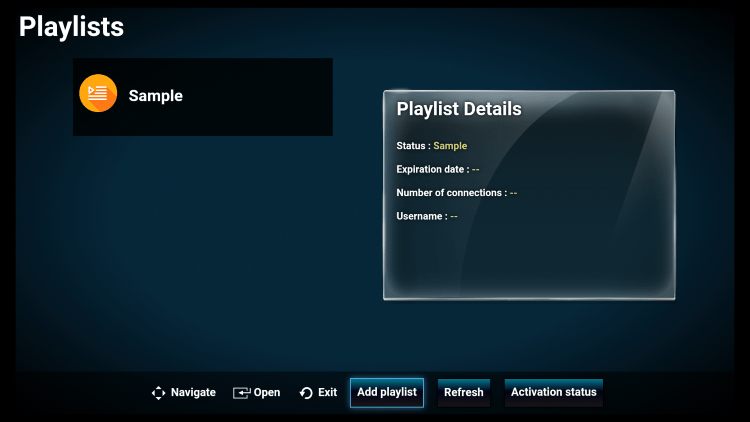
13. To add a playlist from the home screen, click Add playlist on the bottom menu.
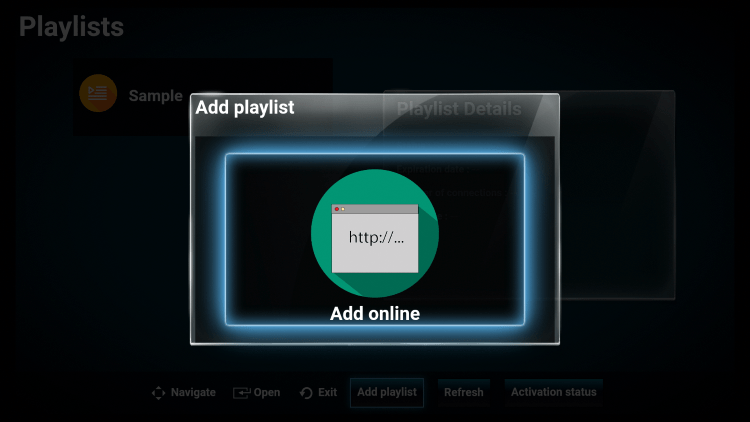
14. Click Add online.
15. Then follow the instructions provided by Room IPTV to get started. Write down your device id and device key.
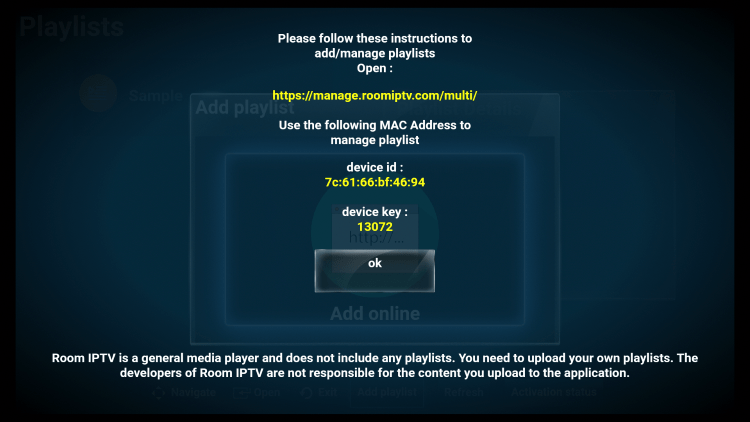
That’s it! Installation of the Room IPTV player is now comple
What is SmartOne IPTV
SmartOne IPTV is a media player for smart TVs that can play content from IPTV service providers. It includes live TV, series, video on demand, and so on. Like most IPTV players, the SmartOne IPTV does not carry any content. Compatible with almost all smart TVs, including Samsung, LG, etc. IPTV player includes multi-language, multi-account, and multi-device support. In addition, it comes with a premium video player with all the basic playback options.
SmartOne IPTV lets you upload playlists via Xtream Codes or M3U urls.
Features
- Compatible Smart TV: Samsung (Tizen, Orsay), Lg (Netcast, Webos),
Android TV, Fire TV, Vewd,VIDAA OS, and more …! - Multi Languages: English, French, Spanish, Arabic, German, Portuguese, Russian, Bosnian and more…!
- Multi-Account: Multi Accounts support, Multi Devices, Add/Delete as you want.
- Fast Zapping: Fast zapping channels, friendly usage.
- Advanced Video Player: Play, pause, resume, forward, backward.
- Favorite List: Save your favorite channel, movie, series for fast access.
- TV Archive: Catch up system (timeshift) for your channels.
- Parental Lock: Protect your children with parental control.
- Advanced Settings: Setup and customize the application as you want.
Price
SmartOne IPTV offers a 14-day free trial to all new customers, so you can try the app without any restrictions! If you are not satisfied within 14 days, please do not pay. The SamrtOne IPTV player costs €12.99 for a lifetime subscription and €2.50 per device over a year.
Check out the best IPTV subscriptions on SmartOne IPTV
SmartOne for Android TV
SmartOne App will be available in Android TVs soon.
SmartOne for Amazon Fire TV
SmartOne App will be available in Amazon Fire TVs soon.
SmartOne App for Samsung Smart TVs
SmartOne App Installation in Samsung Tizen TVs
- 1. On the home screen, look for the Samsung App Store and click it.

- 2. Tap the Search icon and use the virtual keyboard to type SmartOne IPTV on the search panel.
- 3.Locate the app from the suggestion list and click it.

- 4. Tap the Install button to download the SmartOne IPTV on Samsung Smart TV.
SmartOne App Installation in Samsung Orsay TVs
You can install SmartOne to Samsung Orsay TVs in two ways.
Method 1: Install using developer mode.
For Orsay TVs, non-Tizen TVs (E/ES/F/S/H/HU/J4/J5 – 2012~2015 years of production) :
- Activate developer mode.
- Use Sync server IP address 152.228.218.238
- Start App Sync / User Application Synchronisation / Start User app sync
- Once the app has downloaded it will appear on the SmartHub screen.
Method 2: Install SmartOne from USB
For Orsay Tvs, non-Tizen TVs (E/ES/F/S/H/HU/J4/J5 – 2012~2015 years of production) :
- 1.Download the archive : smartone_orsay.zip
- 2. Unzip the content to the root folder of USB stick.
- 3. Insert your USB stick into one of the USB ports on your TV.

- 4. Wait until the tv shows The SmartOne IPTV application on a Samsung Apps screen among other apps.

You have to extract or unzip the contents of the Tizen Widget file to the root of the USB drive (FAT32 format) and insert it in the USB slot of your TV. First, confirm that the user widget directory is situated in your USB drive’s root. You can view the application on My Apps screen with the other apps. You can then remove USB flash drive from your TV (not on all Orsay TV models).
SmartOne App for LG WebOS TVs
Install From LG Content Store TV
- For Webos 1.0 to 6.0 (2015~2021 years of production) :
- 2. Press the Home button on your LG TV remote.

- 3. Doing this will launch the LG content store.
- 4. Navigate to Apps Category and search for the SmartOne IPTV app on the apps list. You can also search for the app by tapping the search icon exhibited at the top.

- 5. Select the SmartOne app and hit the Install button to download the app on LG Smart TV.
Access SmartOne IPTV APP from APPS HOME
Once SmartOne IPTV application has been installed, go to APPS HOME, then scroll and find SmartOne IPTV then lunch the App.
How to Setup and Activate IPTV Subscription on SmartOne
- 1.Turn on the SmartOnt IPTV on your smart TV and take note of the Mac address displayed on the screen.

- 2. Open Google Chrome or any browser on your smartphone or PC.
- 3. Enter the following path in the address bar: https://smartone-iptv.com/plugin/smart_one/main_generate
- 4. Fill in your MAC address and IPTV subscription information (M3U playlist URL or Xtream Codes).

- 5. Go back to your smart TV, turn on SmartOne and stream your favorite shows.
Note: SmartOne IPTV offers you a 14-day free trial. At the end of the trial, SmartOne IPTV can be Activated After a one-time fee of 12.99 EUR or a Yearly License of 2.5 EUR for each TV/device.

Alternative to SmartOne IPTV
SmartOne IPTV is one of the best IPTV players for smart TVS. But it won’t work with Android devices or Firestick. You can also find plenty of SmartOne IPTV Alternatives on the Google App Store. Here is a list of the best SmartOne IPTV alternatives on various IPTV devices.
Android Alternative: IPTV Smarters Pro, TiviMate, GSE Smart IPTV, XCIPTV
iOS Alternative: IPTV Smarters Pro and iMplayer
Smart TV Alternative: Smart IPTV, Flix IPTV, NET IPTV, SET IPTV, SS IPTV, and IPTV Smarters Pro
Firestick Alternative: IPTV Smarters, GSE Smart IPTV, TiviMate, XC IPTV, OTT Navigator IPTV
Windows Alternative: VLC Player, IPTV Smarters Pro
Is SmartOne IPTV free?
SmartOne IPTV is a paid IPTV player, but you can try it for free for 14 days. If you’re not satisfied within the 14 days, don’t pay it.
What devices is the SmartOne IPTV available on?
SmartOne IPTV is only applicable to smart TVS, such as Samsung (Tizen, Orsay), Lg (Netcast, Webos), Android TV, Fire TV, Vewd, VIDAA OS, and more…!
What is SmartOne IPTV
SmartOne IPTV is a media player for smart TVs that can play content from IPTV service providers. It includes live TV, series, video on demand, and so on. Like most IPTV players, the SmartOne IPTV does not carry any content. Compatible with almost all smart TVs, including Samsung, LG, etc. IPTV player includes multi-language, multi-account, and multi-device support. In addition, it comes with a premium video player with all the basic playback options.
SmartOne IPTV lets you upload playlists via Xtream Codes or M3U urls.
Features
- Compatible Smart TV: Samsung (Tizen, Orsay), Lg (Netcast, Webos),
Android TV, Fire TV, Vewd,VIDAA OS, and more …! - Multi Languages: English, French, Spanish, Arabic, German, Portuguese, Russian, Bosnian and more…!
- Multi-Account: Multi Accounts support, Multi Devices, Add/Delete as you want.
- Fast Zapping: Fast zapping channels, friendly usage.
- Advanced Video Player: Play, pause, resume, forward, backward.
- Favorite List: Save your favorite channel, movie, series for fast access.
- TV Archive: Catch up system (timeshift) for your channels.
- Parental Lock: Protect your children with parental control.
- Advanced Settings: Setup and customize the application as you want.
Price
SmartOne IPTV offers a 14-day free trial to all new customers, so you can try the app without any restrictions! If you are not satisfied within 14 days, please do not pay. The SamrtOne IPTV player costs €12.99 for a lifetime subscription and €2.50 per device over a year.
Check out the best IPTV subscriptions on SmartOne IPTV
SmartOne for Android TV
SmartOne App will be available in Android TVs soon.
SmartOne for Amazon Fire TV
SmartOne App will be available in Amazon Fire TVs soon.
SmartOne App for Samsung Smart TVs
SmartOne App Installation in Samsung Tizen TVs
- 1. On the home screen, look for the Samsung App Store and click it.
- 2. Tap the Search icon and use the virtual keyboard to type SmartOne IPTV on the search panel.
- 3.Locate the app from the suggestion list and click it.
- 4. Tap the Install button to download the SmartOne IPTV on Samsung Smart TV.
SmartOne App Installation in Samsung Orsay TVs
You can install SmartOne to Samsung Orsay TVs in two ways.
Method 1: Install using developer mode.
For Orsay TVs, non-Tizen TVs (E/ES/F/S/H/HU/J4/J5 – 2012~2015 years of production) :
- Activate developer mode.
- Use Sync server IP address 152.228.218.238
- Start App Sync / User Application Synchronisation / Start User app sync
- Once the app has downloaded it will appear on the SmartHub screen.
Method 2: Install SmartOne from USB
For Orsay Tvs, non-Tizen TVs (E/ES/F/S/H/HU/J4/J5 – 2012~2015 years of production) :
- 1.Download the archive : smartone_orsay.zip
- 2. Unzip the content to the root folder of USB stick.
- 3. Insert your USB stick into one of the USB ports on your TV.
- 4. Wait until the tv shows The SmartOne IPTV application on a Samsung Apps screen among other apps.
You have to extract or unzip the contents of the Tizen Widget file to the root of the USB drive (FAT32 format) and insert it in the USB slot of your TV. First, confirm that the user widget directory is situated in your USB drive’s root. You can view the application on My Apps screen with the other apps. You can then remove USB flash drive from your TV (not on all Orsay TV models).
SmartOne App for LG WebOS TVs
Install From LG Content Store TV
- For Webos 1.0 to 6.0 (2015~2021 years of production) :
- 2. Press the Home button on your LG TV remote.
- 3. Doing this will launch the LG content store.
- 4. Navigate to Apps Category and search for the SmartOne IPTV app on the apps list. You can also search for the app by tapping the search icon exhibited at the top.
- 5. Select the SmartOne app and hit the Install button to download the app on LG Smart TV.
Access SmartOne IPTV APP from APPS HOME
Once SmartOne IPTV application has been installed, go to APPS HOME, then scroll and find SmartOne IPTV then lunch the App.
How to Setup and Activate IPTV Subscription on SmartOne
- 1.Turn on the SmartOnt IPTV on your smart TV and take note of the Mac address displayed on the screen.
- 2. Open Google Chrome or any browser on your smartphone or PC.
- 3. Enter the following path in the address bar: https://smartone-iptv.com/plugin/smart_one/main_generate
- 4. Fill in your MAC address and IPTV subscription information (M3U playlist URL or Xtream Codes).
- 5. Go back to your smart TV, turn on SmartOne and stream your favorite shows.
Note: SmartOne IPTV offers you a 14-day free trial. At the end of the trial, SmartOne IPTV can be Activated After a one-time fee of 12.99 EUR or a Yearly License of 2.5 EUR for each TV/device.
Alternative to SmartOne IPTV
SmartOne IPTV is one of the best IPTV players for smart TVS. But it won’t work with Android devices or Firestick. You can also find plenty of SmartOne IPTV Alternatives on the Google App Store. Here is a list of the best SmartOne IPTV alternatives on various IPTV devices.
Android Alternative: IPTV Smarters Pro, TiviMate, GSE Smart IPTV, XCIPTV
iOS Alternative: IPTV Smarters Pro and iMplayer
Smart TV Alternative: Smart IPTV, Flix IPTV, NET IPTV, SET IPTV, SS IPTV, and IPTV Smarters Pro
Firestick Alternative: IPTV Smarters, GSE Smart IPTV, TiviMate, XC IPTV, OTT Navigator IPTV
Windows Alternative: VLC Player, IPTV Smarters Pro
Is SmartOne IPTV free?
SmartOne IPTV is a paid IPTV player, but you can try it for free for 14 days. If you’re not satisfied within the 14 days, don’t pay it.
What devices is the SmartOne IPTV available on?
SmartOne IPTV is only applicable to smart TVS, such as Samsung (Tizen, Orsay), Lg (Netcast, Webos), Android TV, Fire TV, Vewd, VIDAA OS, and more…!